
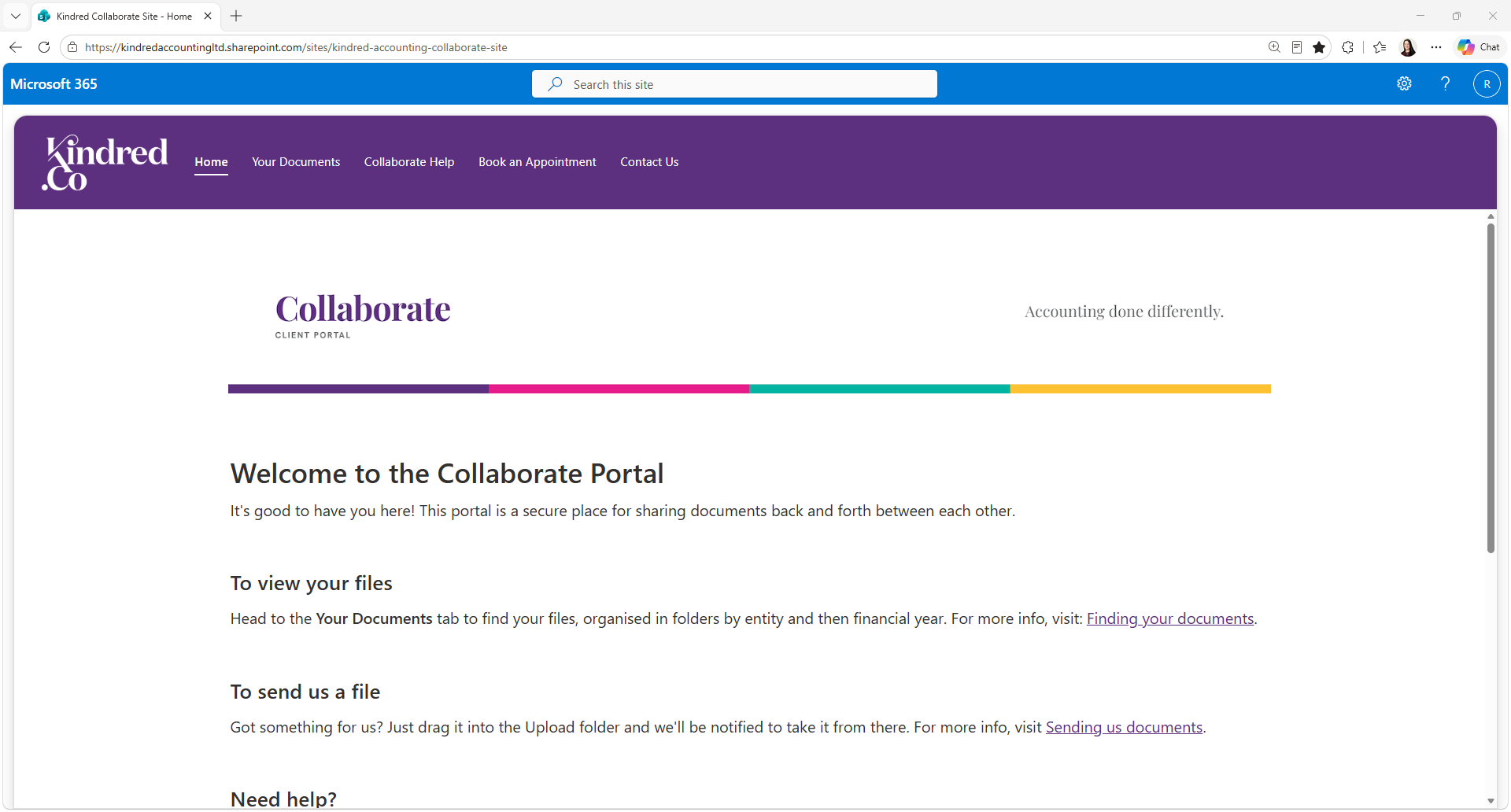
Collaborate Portal Help
Collaborate, is a secure online portal where we share documents back and forth with you. Once you're set up, we can use the portal for anything you'd like to share with us going forward - not just your annual questionnaire. Here is our guide for everything you should need to know about using Collaborate:
Contents
Frequently Asked Questions
-
Please see the ‘logging in for the first time’ section below
-
No. The sign-in screen may show a Microsoft logo regardless of your email provider — that's just how the sign-in process is displayed. Log in with whichever email address your Collaborate invite was sent to.
-
If you log in with Gmail or a Microsoft email address, your password is simply your usual email password — use your normal "forgotten password" process with Google or Microsoft. If you created a separate password for Collaborate, get in touch with us and we'll help you reset it.
-
Just get in touch and we'll resend it. This is also why we recommend bookmarking the site once you've logged in — it saves hunting for the email again next time.
-
Yes — just reply to any of our emails with their address and let us know whether they need access to everything or just specific documents.
-
You will be able to quickly and easily identify these from your documents page with each entity having a dedicated folder.
-
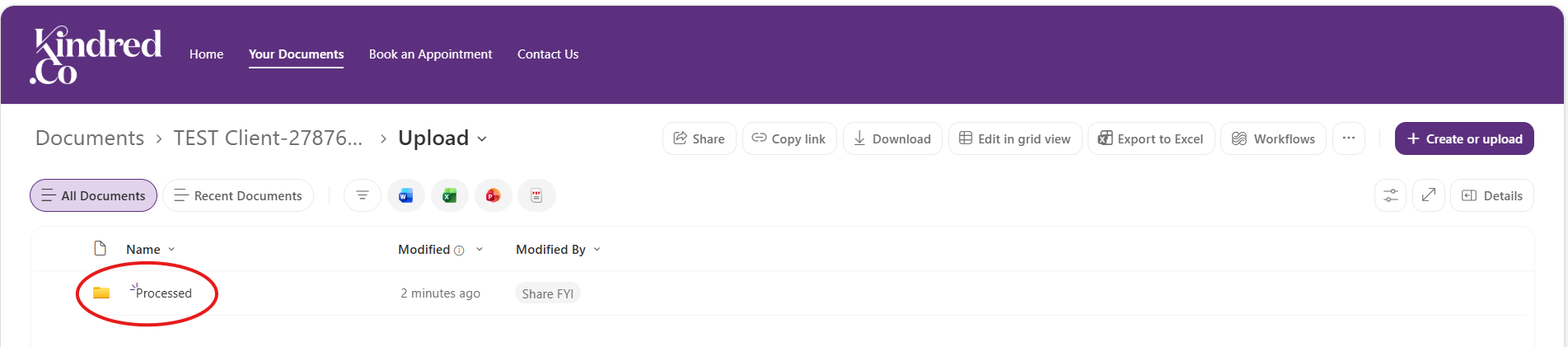
Uploaded files sync with our system every ten minutes and then move from the Upload folder into the Processed folder. Once a file has disappeared from Upload, it's landed safely with us.
Logging in for the First Time
To login for the first time, we'll email you a specific link.
Note: Access to Collaborate is specific to the email address to which your link(s) have been sent. We can add access for different email addresses - just ask.
Heads up: the sign-in screen will show a Microsoft logo because Collaborate is a Microsoft product. You don’t need a Microsoft account to login - you just need to login with the email address we sent the link to.
Logging in with a Gmail address:
Enter your Gmail address
After clicking Next, you will be redirected to Google to log in using your Gmail login and password.
If you have enabled Multi-Factor Authentication on your Gmail account, you will be prompted to follow the Google MFA process (for example, tapping a prompt or entering a unique code)
You will then be redirected to Collaborate with a request to Accept Permissions
Click Accept
Collaborate will open. Depending on the link you clicked, this could be the Home Page, a document, or the Upload folder. Click on Home to re-orient yourself if you need to.
Logging in with a Microsoft address (for example @hotmail.com, @outlook.com, @msn.com, or a Microsoft-managed work email):
Enter your Microsoft address
After clicking Next, enter your Microsoft email password
Click Sign in
You will then be redirected to Collaborate with a request to Accept Permission
Click Accept
Collaborate will open. Depending on the link you clicked, this could be the Home Page, a document, or the Upload folder. Click on Home to re-orient yourself if you need to.
Logging in with any other email address:
Enter your email address
You will be prompted to enter a one-time code that has been sent to your email address
You will receive an email with a subject line containing the practice's name, and "Account Verification Code"
After entering the code, you will be prompted to create a password unique to Collaborate
Note: This password does not need to be the same as the email password.Collaborate will open. Depending on the link you clicked, this could be the Home Page, a document, or the Upload folder. Click on Home to re-orient yourself if you need to.
Tip: bookmark the Collaborate site once you're in, so it's easy to find again.
Finding your documents
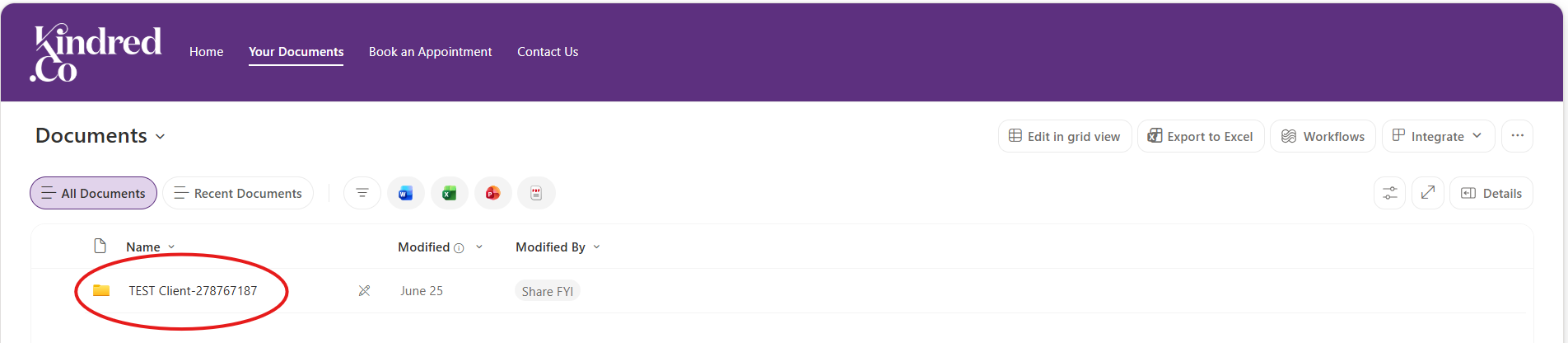
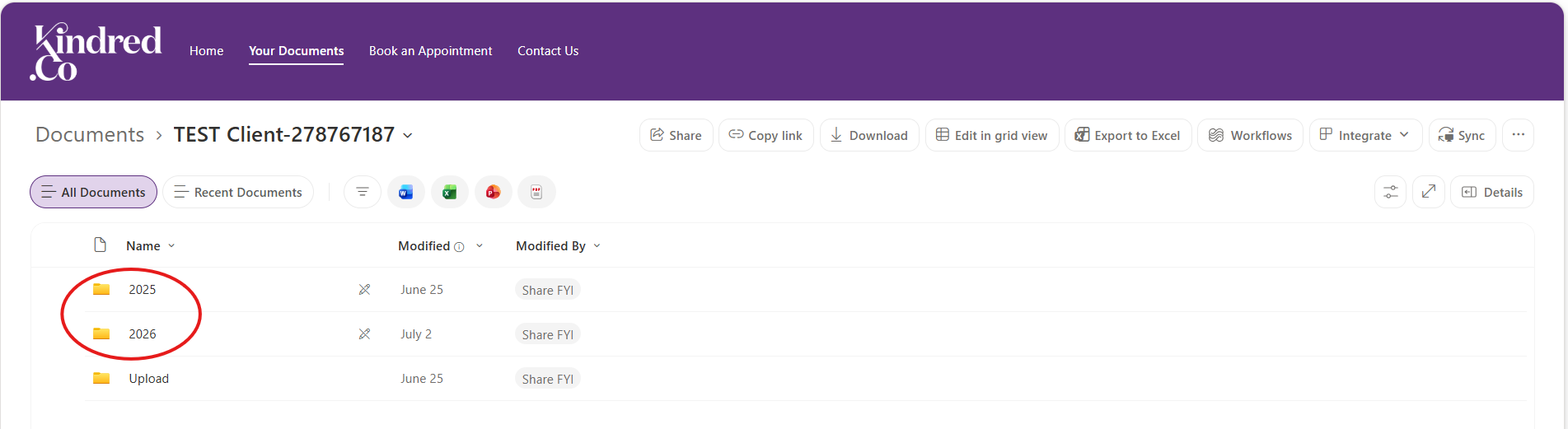
Select Your Documents in the top menu. You'll see a folder for each entity we look after for you, and inside that, a folder for each financial year — that's where your questionnaire and any other documents for that year will be. Editable documents, like your annual questionnaire, can be filled in directly in Collaborate, or downloaded to your computer if you'd rather work offline and upload it later.
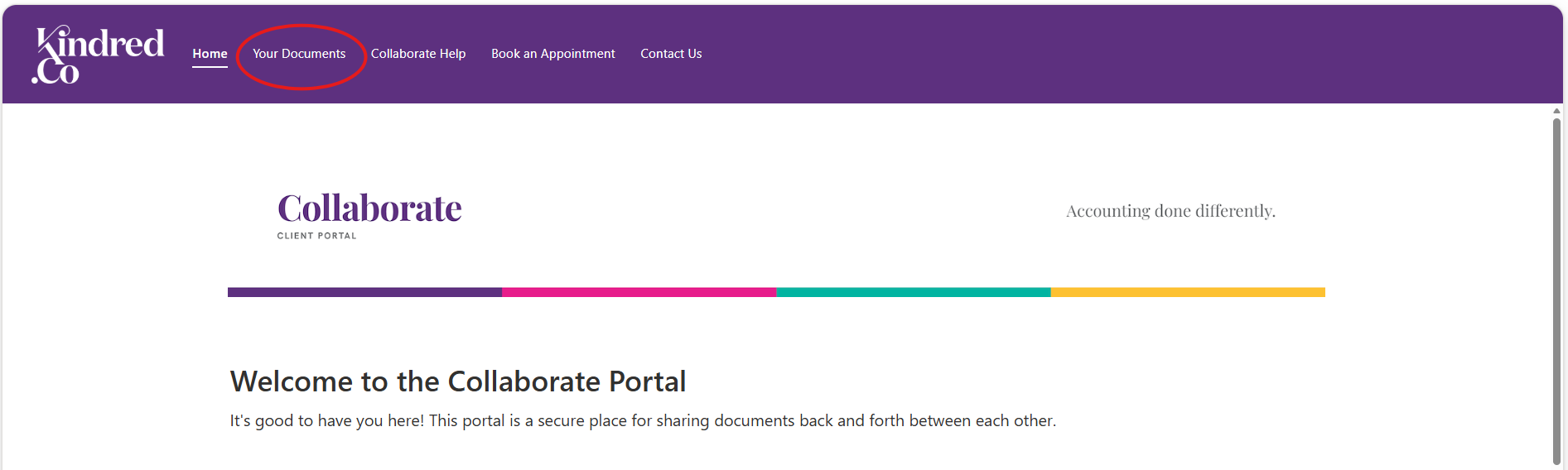
Step 1: click on the Your Documents tab
Step 2: Select your entity (Individual, Partnership, Trust, Company etc)
Step 3: Select the relevant financial year to view related documents
Sending us documents
Drag and drop OR upload files into the Upload folder to send them to us securely. Files sync with our system every ten minutes, then move into the Processed folder. So if a file disappears from Upload, that just means it's landed safely with us — you don't need to do anything further.
Option 1: Drag and drop your files into the upload folder
Files sync with our system every ten minutes, then move into the Processed folder. So if a file disappears from Upload, that just means it's landed safely with us — you don't need to do anything further.
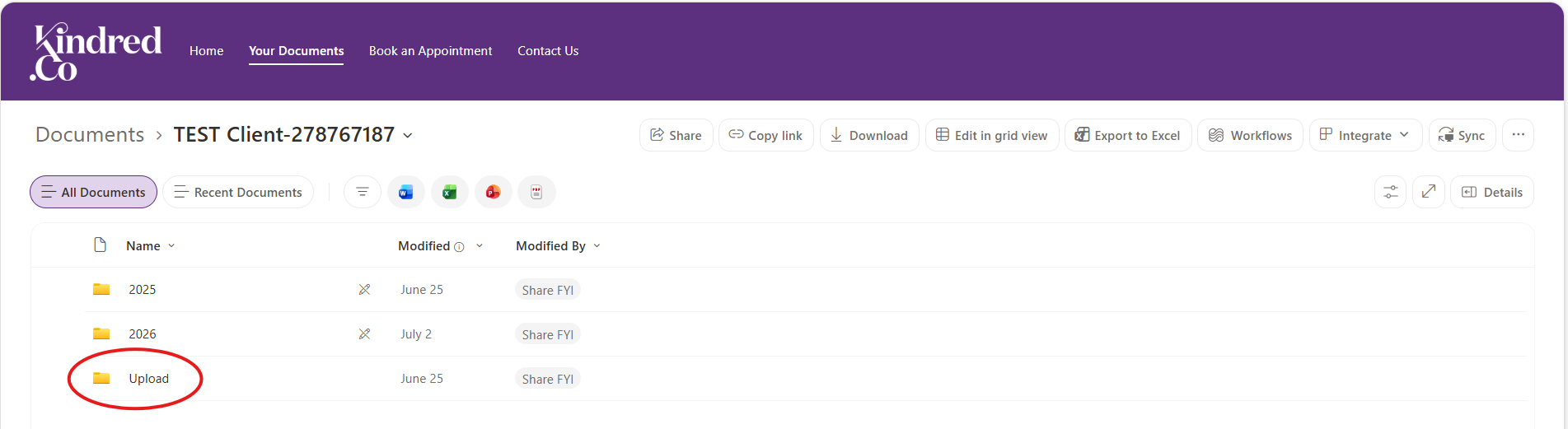
Option 2: Upload a document to the uploads folder. Click the upload folder icon.
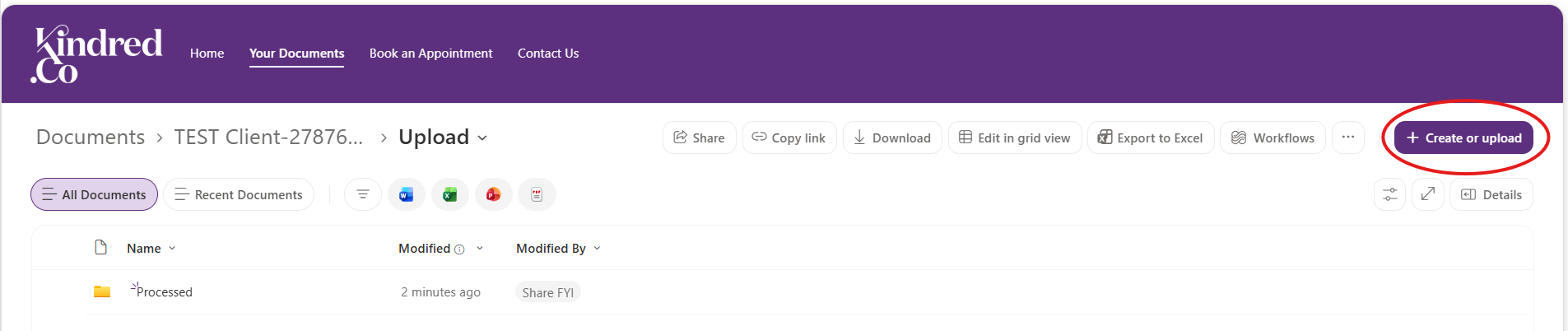
Click the + Create or upload button and choose your file
Files sync with our system every ten minutes, then move into the Processed folder. So if a file disappears from Upload, that just means it's landed safely with us — you don't need to do anything further.
Completing your questionnaire
Your annual questionnaire lives in your entity's folder for the relevant financial year. You can fill it in online or download it, and use the checkboxes alongside each section to track what you've already uploaded — handy if you're gathering documents over a few sessions.
Once you've completed your questionnaire and uploaded your supporting documents, drop us a quick email to let us know you're done, and we'll get started.
Giving others access
By default, only the email address your invite was sent to has access. Want to add someone else — a bookkeeper, lawyer, or colleague? Just reply to any of our emails and let us know their email address and what you'd like them to see.
Access can cover your whole client folder, or just a single document — whichever suits you best.
Keeping your portal secure
Access to your portal is tied to the specific email address(es) we've set up, and sign-in is handled by Microsoft or Google's own authentication — the same technology behind their email and account sign-in — so your documents stay far more private and secure than a standard email attachment.
If you use Multi-Factor Authentication on your email account, you may be asked to confirm your identity (for example, tapping a notification or entering a code) as part of signing in — this is your email provider's own security check, not something extra we've added.
Need a hand?
This page covers the essentials, but if anything is unclear or behaving unexpectedly, don't hesitate to get in touch — we're always happy to help.